controlling 3d scan + data in processing

week ten – thursday 3rd october

After the interim presentation I sat down with Tim to work out how to get the hand duplicating within the screen controlled by an intArray that uses the data I collected to personalise each design.

We started out slow, the first step was to simply generate two hands in one space by writing out the loadShape and relevant functions twice. Then we went to change this into an array, this had a range of errors. Pictured in the slide below is an error that shows that the [0] or first hand render width couldn’t be multiplied by two as it was technically a zero integer value. We struggled to figure out why the second hand stopped generating once we fixed the errors.
What we figured out we needed to do was revert or undo the translation after each run through of the draw function. We needed to do this because the translate function relocates the center point of an object. Without the revert, the next run through translates off of this new base again, off the screen. This also needed to happen with the rotateX function as well.

Next, in order to get the random generation of the hands across the X axis we put in translate(random(0, width));
however when we went to revert this back using the negatives values we realised that it could pick one set of random values for the translate and could select a totally different set to revert it back to.
We solved this by creating a variable that would have both random positions as the same – that we could then plug into the initial translate and then the reverted version; ‘float randomPos = random(0, width);’

this is getting a bit confusing – I hope the images help to make sense of my rambling

Another thing I wanted to randomise per page design was the scale of the hands, just to personalise the pages per render.

Then I went onto the meaty bit of my design, where I would change the number of hands in the frame based on the measurement of each persons hand. What we decided we needed to do was to change the value of hands manually rather than through an intArray because an intArray runs through the values every frame, and this was far too fast to capture/save for each ‘page’.
However the problem that we had was that when we used one of the smaller values, 10cm, the 10 3D render files took up too much memory to actually run.
One possible solution to this is to perhaps run the program and take X(finger length) amount of screenshots of the hand in random positions, rotations & scales to then composite into a whole composition in photoshop later.

The last aspect Tim and I worked on was trying to achieve the text array that is personalised per persons design.
It was important to me to use an array in my code, as this was my initial plan for generating a range of personalised design print outputs and so I wanted to at least do something along those lines.
This array was a whole lot easier than that of the PShape. I created a String array and used some of the code/skills in applying type that I learnt earlier in the semester. Tim then helped me to put in a counter that meant that the text strings would only show one per frame (rather than all at once on top of each other). Then we had to add in an if statement so that once the counter reached the eighth value [7] in the array it would reset, otherwise the counter statement becomes false and the text stops running after the last value.

So this is what we have now. My next steps to develop this is to look at how I can create interesting lighting by investigating into the lights(); function. Hopefully this will help me address some of the feedback comments I got from the presentation, in that people wanted to see more of the rotation seen on screen in the printed booklet.
I also want to develop the type into something that represents what is seen in some of my artist models work.
One thing that Tim has suggested to change is the background colour, to a more simple white so that the compositing of the design in photoshop is easier/more clean.

sorry this has been such a long post!

data inputs

week eight – thursday 19 september

lecture notes:
processing – Function()’s do things, Variables store & classify information. There are a range of different types of variables, we need to tell Processing what type of variable we are dealing with so that it knows what to do with it.

Some new variable data types to make note of are,

String – multiple characters, for example, names.

boolean – are true/false variables that can act as on/off switches, for example you would use this when you wanted specific to happen when a mouse is pressed.

array – a list of data, for example you could have an intArray, stringArray, hexArray etc.

int – Numbers, for example birthdays. these are whole or negative numbers. By defining a number as an integer processing can understand what to do with it, such as multiply, use as coordinates, divide etc..

float – Numbers that are fractions or decimals, these can also be whole numbers.

‘for’ loops
These loops allow for multiple varied functions to be carried out in a few lines of code rather than many.

for(int k = 0; k<3; k++){ function }

‘for’ is kind of like a function
‘int k = 0’ is the init, it defines the initial k value as 0.
‘k<3’ is the test, the number is the number of times the code runs, if the test is false (eg: k is more than 3) the forloop stops running.
“k++’ is the update, this describes what we want to happen each time the loop runs. ++ means add one each time, this can also be written as k = k+3, in this form the number can be substituted for whatever is needed in the context.

The variable that is defined (k in this case) can only be used within the curly brackets of the for loop.

for’ loop pair tasks:

code that creates

week seven – thursday 12 september

lecture notes:
Assessment two is about using code to create a physical creative output.

What is driving your output?
Design Principals
contrast
movement
balance
scale
perspective
rhythm

Data
sound wave
random numbers
mouse movement/tracking
census data
health data (Fitbit, smart watch etc.)
traffic
global data
screentime

How to turn this data into code?
Most past students have used processing to bring their data into code as it is an easy program to bring in data sets and to generate different file outputs for a creative final.

Processing can make 2D and 3D files (and is going to be the one that is mostly taught to us in lectures).
Different objects need different file formants, for example for printing you have PDF(vector),PNG,JPG(bitmap) etc.for 3D printing you need files similar to OBJ, STL, 3DX

How we covert coding to PDF’s?
  Java examples – libraries – pdf export – select type of pdf
One helpful type of PDF that processing can generate for you that we covered in class was mousePress.

mousePress
all sketches are save into sketch folder, however saves over each one the same time. To save multiple on mouse press use the ‘manyPDF’.

How to we convert coding to 3D object files?
  sketch – import library – import library
Suggested libraries to use are:
HE_Mesh and OBJExport (restart processing once installed)
HE_Mesh allows you to generate and modify a shape in processing.

Other programs that will be helpful in creating 3D files that can print from your code:
Mesh Mixer – sometimes mesh you generate is an impossible mesh, this program helps you fix mesh errors.
Slicer (for fusion 360) – can import your STL, allows you define size, construction technique – you can download a pdf of these files.

What can I make as a final output?

“The final manifestation of your outputs could be realised through 3D printing, laser cutting, various printing formats (book, poster, postcards, OHP, vinyl), folding.”

Think about where can this object go, what different environments be applied to is something to consider when developing your concept.

3D Object
  3D Printing
  Laser Cutting (wood, card/paper, fabric, plastic)
  Water Jet Cutting (stone, tile)
  Wax Mold
  Folding (paper, card etc.)
  CnC Milling (carves wood)
  VacForm
  Knit

Print
  Paper Print (posters, books, pamphlets, zine, card etc.)
  Laser Cut (etching, cut a base to print onto)
  Screen Printing
  Vinyl Cut/Sticker

Experiential Instillation
  VR
  Projection (on something other than a screen)
  Misc. (after discussion with lecturers)
should be live rather than static, unique to each run through/interaction and the audience has a part to play in each run through, physically interaction with the output.

unity

week four – thursday 8th august

lecture notes:
Unity is a 3D environment editor program which is most commonly used for building gaming enviroments and VR. As a free program it has plenty of use and online tutorials, making it a good program to learn the basics of 3D coding.

setup
W,S to move backward and forward, A,D to move side to side.
Right click and drag moves position of camera.
Clicking on a game object will highlight it in the left hand ‘objects’ panel and open its settings for materiality on the right hand display as well as outlining the object itself in the view window.
At the bottom of the display is the project view, showing other scenes ‘files’ available.

game objects
To add new game objects right click on the left hand panel and select from the range of objects.
some of the different components that can be applied to the game objects are;

Transform – position, rotation and scale of the game object.
Mesh – or geometry for the game object
Mesh render  – we can change the material from a catalogue
Audio source – modifies spacial audio (where it is and experience for user – 3D dimensional audio)
Collider -modifies the collision mesh, changes whether or not the player can go through the game object

To add new components you can choose from the drop down menu or you can add a new type of components know as script. These components allow you to modify the code for the components to make unique changes.

Any changes you make in play mode is not saved when you go back yo the editor mode (changes made in play mode are more to test before applying).
To get out of play mode press the ‘esc’ key to reveal mouse, press pause and the to get back to editor mode press play again.

three.js

week two – thursday 1st august

lecture notes:
Three.js is an archive of coding outcomes that are created in Java. It is modelled on the idea of learning through experimentation and building on what others have created.
The right hand menu has sliders and drop down menus that can alter the product/objects materiality, size or colour as well as environmental factors. These changes are reflected in the code that sits onto of the object. Seeing these changes occur in code and in the product itself helps you learn through seeing the changes without having to know the code.

As an experimental project, the three.js playground isn’t maintained so there are some elements which don’t always work.

z = depth
shape = mesh (is made up of material & geometry)

saving to the archive:
The three.js archive is not monitored and has thousands of outputs and forks saved in a list. The best way to ensure that our work is saved and viewable regardless of the changes within three.js. To do this you need to copy all of your code (ensuring you get all of the code) into a text editor such as Brackets. If you have any ‘if’ statements these need to be modified/deleted. Save the brackets file as an html and once it is saved it should be openable through your default web browser (chrome, safari etc.)

screenshots & outputs from three.js that I created before I learnt how to save them as working html files

processing

week two – thursday 25th of july

lecture notes:

functions: ‘rect(205,200,10,20);
Functions do something in code for example, creating objects, shapes and moving elements.
Functions include: rect, ellipse, triangle, fill, noFill, stroke, strokeWeight, line, background and size.

variables: ‘rect(width/2, height/2, mouseX, mouseY);
Variables store information about the function. Variables replace the standard numerical parameters that sit within the parentheses.
Variables include: width, height, mouse and frameCount.

screenshots working through combinations of functions, variables, comments and how to find reference information for functions.

data types:
data types are used to set up a document and run code in a smoother more organised way. Data types start with an open curly parentheses and end with one after all lines of code in that data type.
The two data types include: void setup{} and void draw {}

task one: ‘processing panda’
In pairs we were given a set of processing instructions in order to create a design outcome. Some of the instructions were deliberately left unclear for us to work out. We completed this task using the Processing software and a selection of functions and variables resources for elements we need to use.

conditional design

week one – thursday 18th of july

task one: ‘hatching’
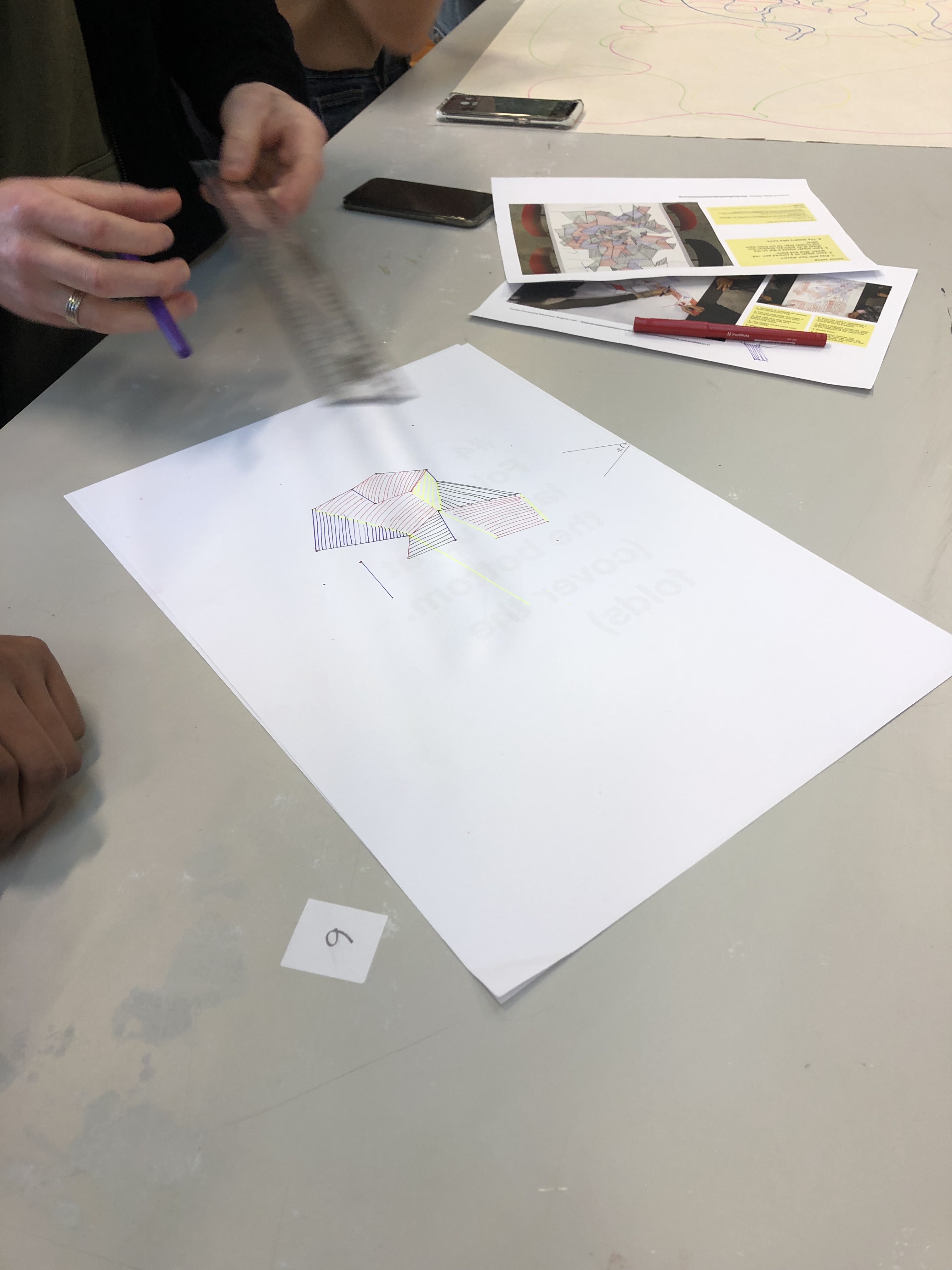
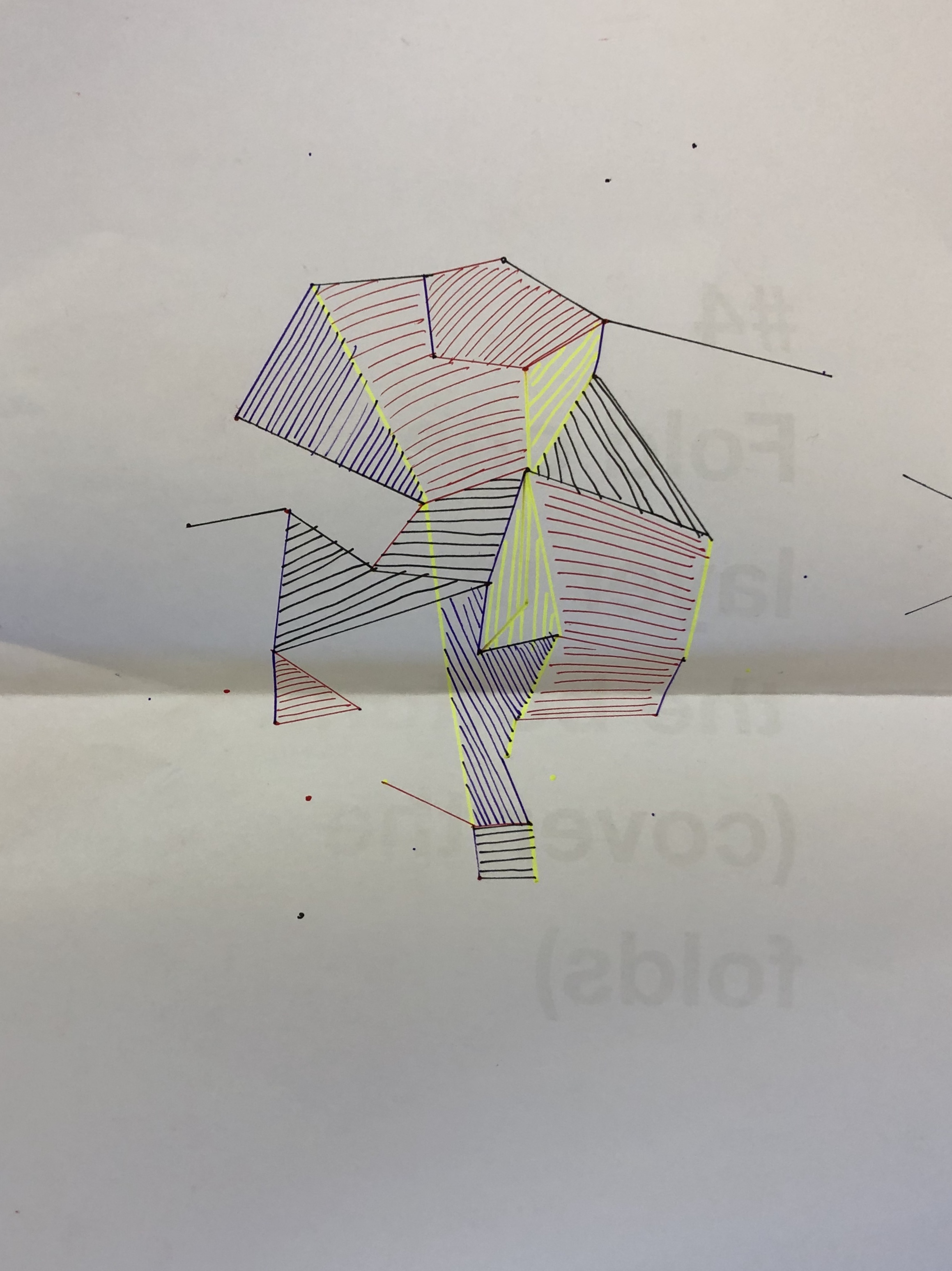
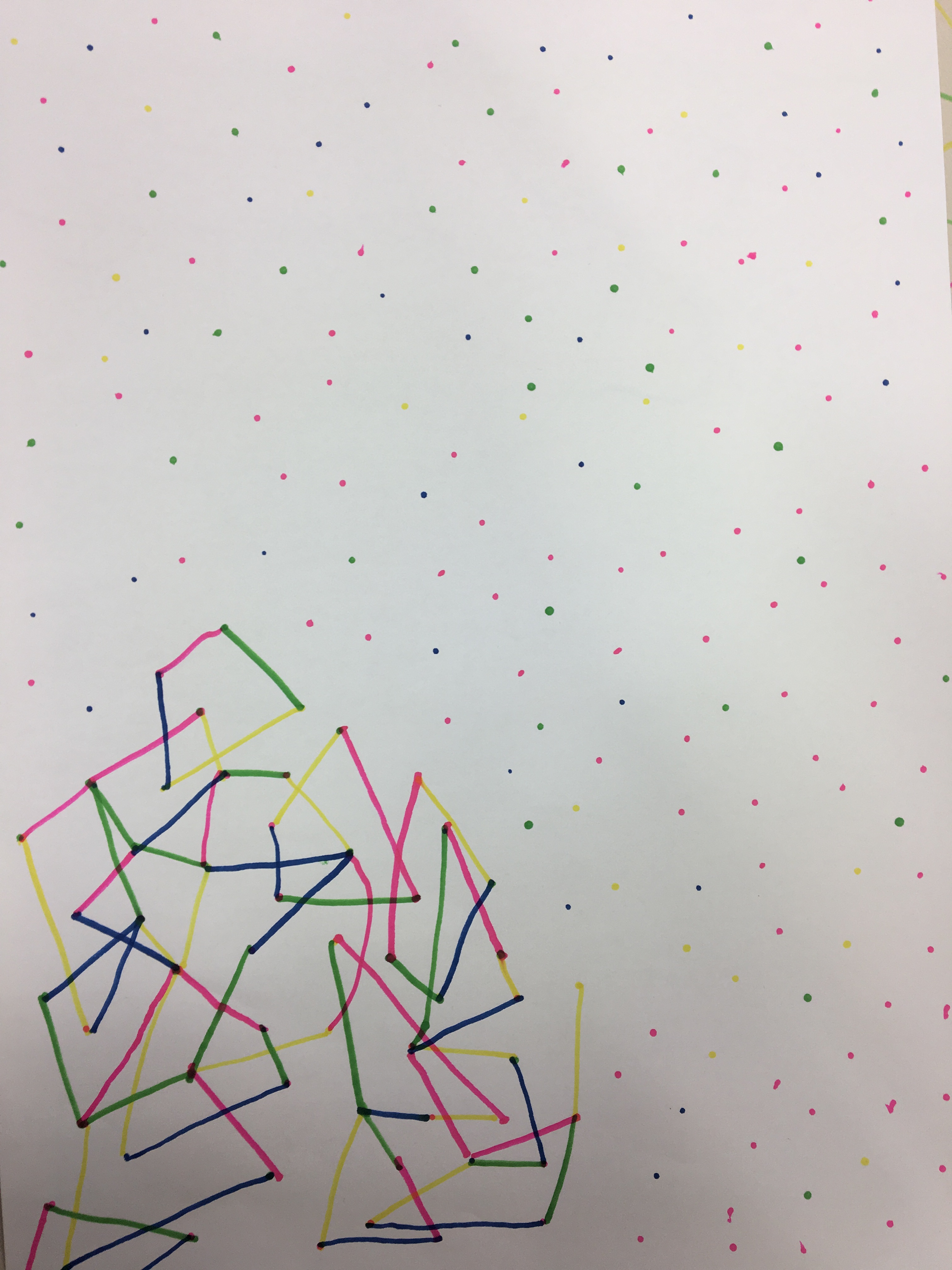
In a group of four we were given a set of rules to follow and create a design output. Each ‘player’ or team member had an assigned colour. The rules explained that on each players turn you would have to draw a dot no more than 10cm away from any other preexisting dot and then draw the smallest possible line between two dots within a designated angle of opportunity. Once a closed shape was formed the ‘closer’ had to fill in the shape with directional hatching to that of the closing line.

task two: ‘dot trapper 2000’
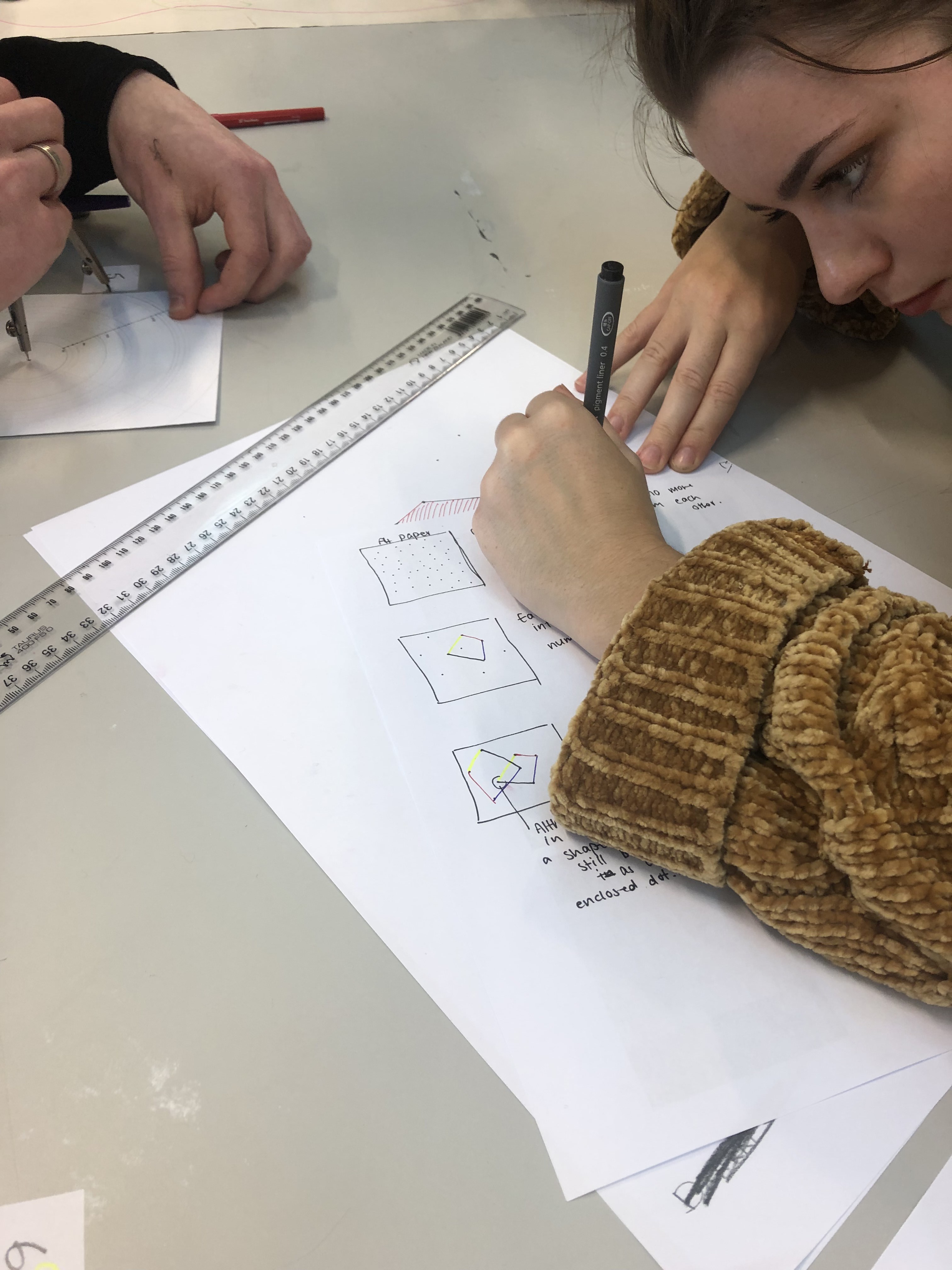
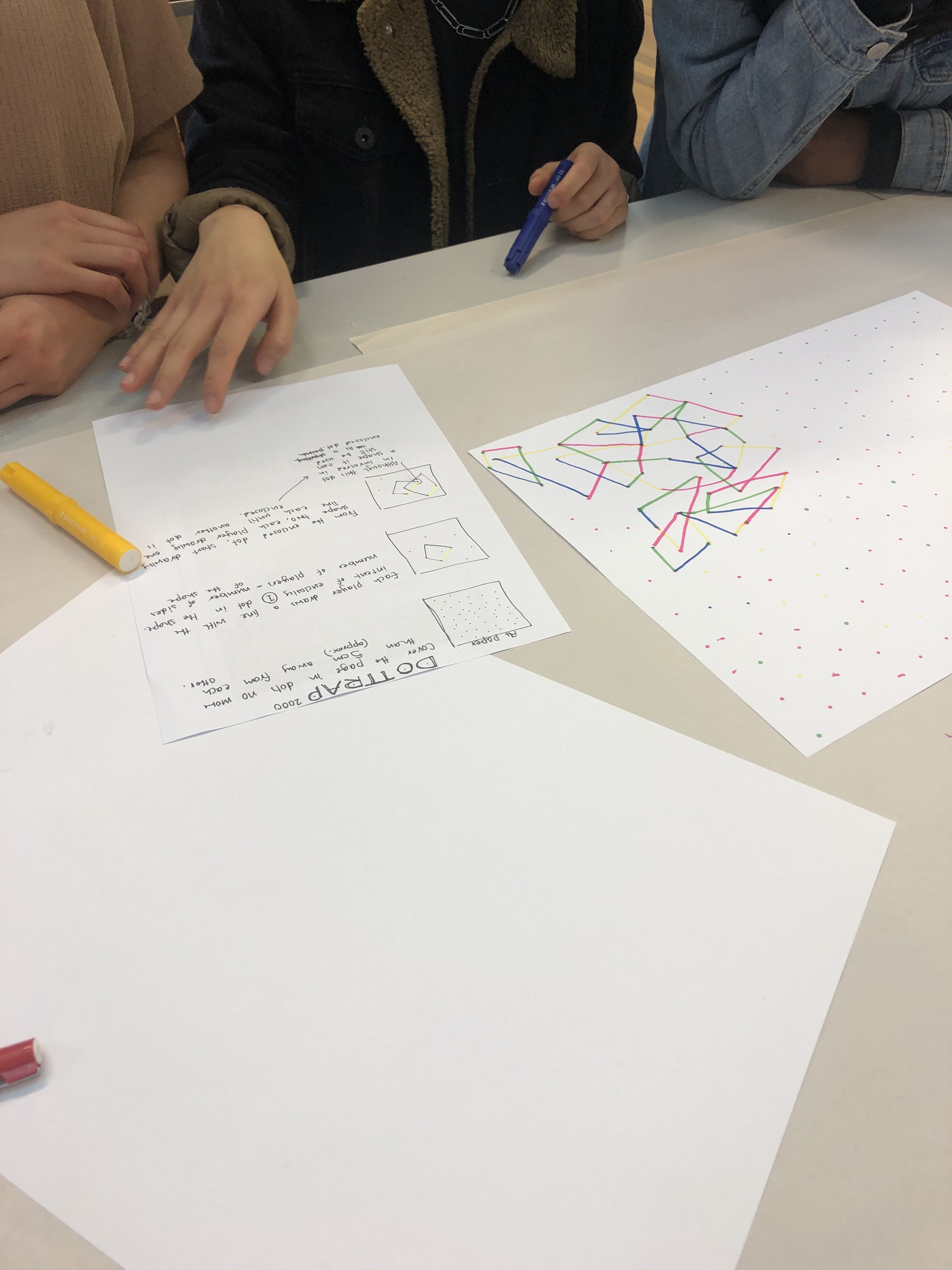
In our group we were now tasked with creating our own set of rules so that another group could create a desired design outcome. This task was interesting as we were able to see how the clarity of our rules impacted the outcome. We observed from the first task that having images to give us some indication of the final product helped in understanding the rules we had to follow.

task three: independent study
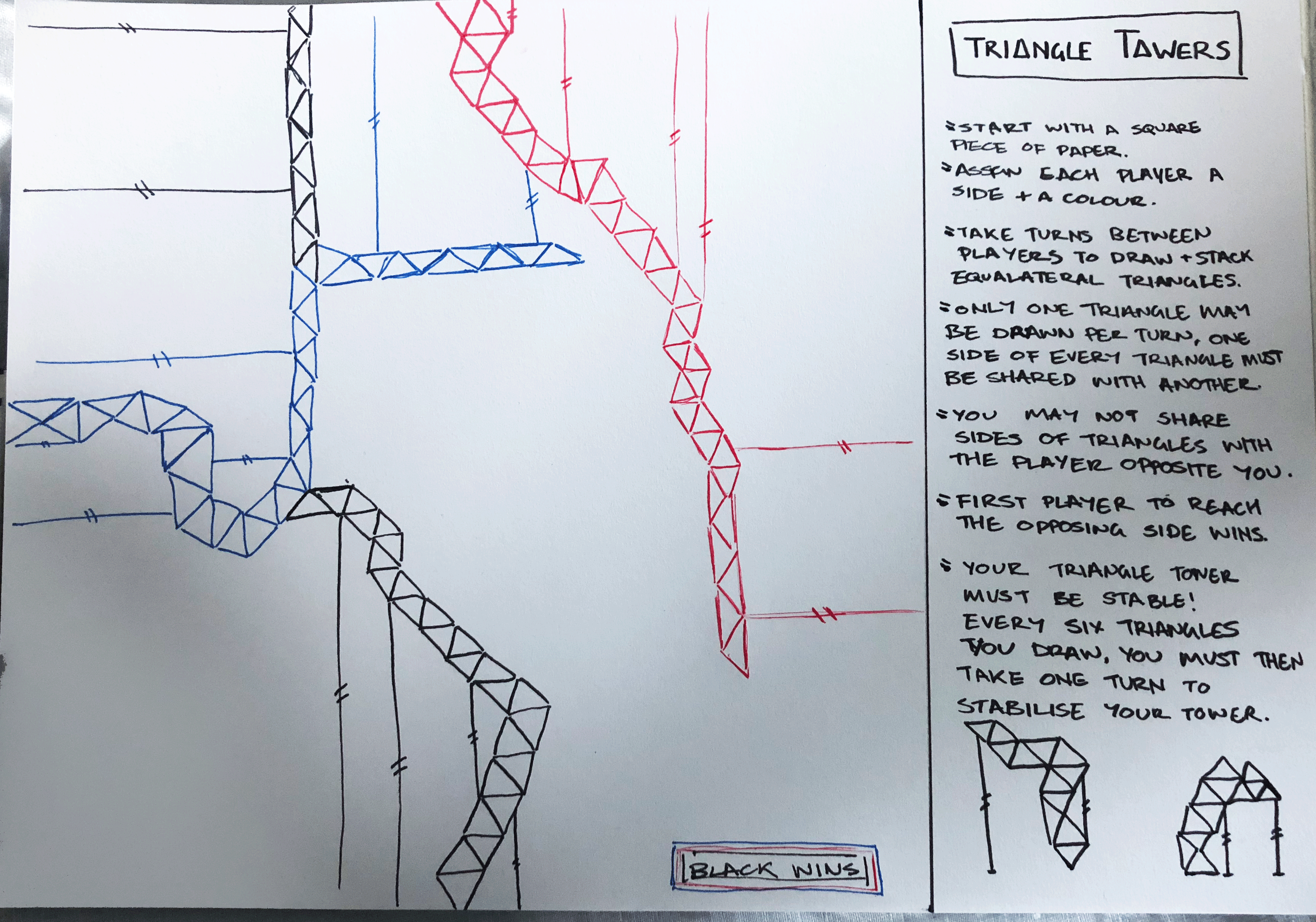
The third task was to make a third conditional design set of rules and to test out these rules on new people outside of class. What I came up with was ‘Triangle Towers’ in which the aim was to create a tower of equilateral triangles to reach the other side of a sheet of paper before the other players.

When this was tested out on a group of three players what I discovered was that the players altered the directions of the stabiliser poles to what was convenient to their path than what would be more realistically stable. Another aspect that was the player altered (unintentionally) was that their equilateral triangles began to turn into isosceles triangles, this sped up gameplay but the patterns made weren’t as unique. Perhaps an addition to this game would be to say that only equilaterals may be used when building vertically and isosceles for horizontal.

Design a site like this with WordPress.com
Get started